
As we explained in chapter 1, the Nodalis IDE is an extension for Visual Studio Code that provides an integrated means of developing PLC resources in Structured Text and the IEC 61131-10 XML exchange structure (.iec files). It also allows you to develop using MTI’s Skipper Sheets programming method, which is a spreadsheet style programming approach. In this chapter, we will explain the basics of the IDE. In subsequent chapters, we will explain how to program for specific targets and interfaces.
Nodalis Commands
VS Code has a common command palette where you can run commands provided by the various extensions. Nodalis provides its own set of commands that can be run from the palette or from the context menu available when you right-click on a file or folder in the workspace.
To access these commands from the file explorer within VS Code, start by selecting the Explorer panel from the left-hand side of VS Code (this is the icon that looks like two pages), or you can select the “View > Explorer” menu. From the explorer panel, right click on file supported by Nodalis (.st, .iec, or .skip). A context menu will appear, and within that menu you will see a Nodalis specific menu item for certain actions on that file. Additionally, if you right-click on a folder in the explorer panel, you will also see a Nodalis command for compiling the folder.
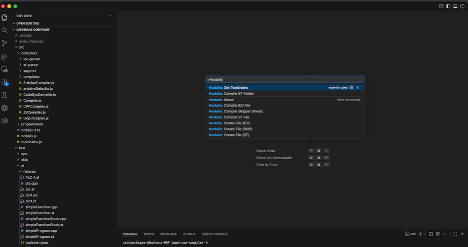
You can also access these commands from the command palette. The command palette can be accessed by clicking on the search bar in the center of the title bar for VS Code. From that search bar, select “Show and Run Commands”. Or, you can go to the “View > Command Palette” menu. When the command palette appears, enter “Nodalis” to see all of the available commands. Keep in mind, when running a command from the command palette, the context of the command is the file that is currently view. Here is an explanation of each of the commands:
· Get Toolchains - Downloads the compiler toolchains for the various targets of Nodalis. This command should only be run once, unless a new version of Nodalis delivers new targets.
· Compile ST Folder - Compiles all ST files in the currently active folder to the desired target. When you run this command, you will be prompted for the desired target and output type. You must also provide the resource name, which is the file name (without extension, of the ST file that contains the program to run.
· Compile IEC File - Compiles an IEC file (.iec extension) to a desired target and output type. You will be prompted to provide the desired target, output type, and resource name.
· Compile ST File - Compiles a ST file (.st extension) to the desired target and output type. You will be prompted to provide the target and output type.
· Compile Skipper Sheets - Compiles a Skipper Sheet file (.skip extension). You will be prompted to provide the target device type. Skipper Sheets can be compiled to IEC, ST, or XML (the MTI deliverable format).
· Create ST, IEC, or SKIP File - These commands allow you to create a new file of the given type. You will be prompted to provide the file name.
Starting a New Project
To begin a new project with VS Code and Nodalis IDE, it’s important to understand some basics about VS Code. First, VS Code works from “Workspaces”. These workspaces can either by a folder or an explicit workspace file, which allows you to bring together numerous folders into one workspace. The context of everything done in VS Code and Nodalis will be that Workspace. So, if you are working from a folder and choose to compile an IEC file, the output path for the deliverables will be that same folder (binaries will be compiled to a “bin” folder within the workspace directory).
Second, MTI selected VS Code as the development environment for the Nodalis extension because it has well-integrated source control through Git. This means that you can create a git repository for your project folder by using industry standard commands, and all files created by Nodalis will be incorporated into that repository.
With all that understood, to get started with a new project, open or create a new folder in VS Code by going to the “File > Open Folder” menu. Once you do this, you should see the contents of the folder (if any) in the Explorer panel.
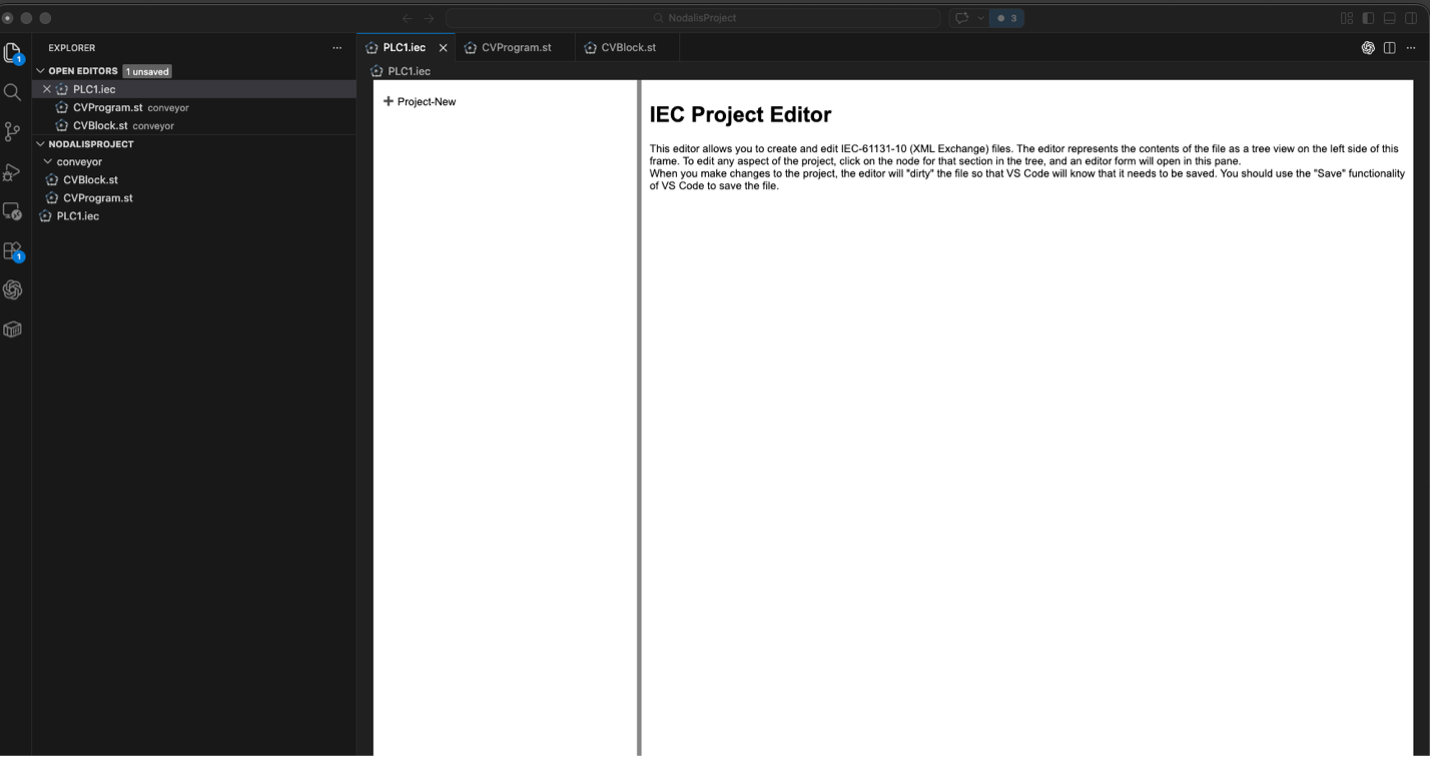
Once you’ve opened a folder in VS Code, you can either right-click within the blank space in the Explorer panel or use the command palette to execute one of the “Create” commands to make an ST, IEC, or SKIP file. In later chapters we will go through how to manage projects specific to each file type.